
Originally published in 2022. Updated in July 2026.
One of the biggest concerns business owners have about a custom website is what happens after launch. Will they be able to update the website themselves, or will every small change turn into an email to their developer?
It is a fair concern. Some people have used WordPress before and found the dashboard confusing. Others have used website builders that seem simple at first, only to find that making changes becomes frustrating once they want something more professional-looking, more flexible, or more tailored to their business. That is one of the reasons we build our WordPress websites with custom Content Blocks.

For both PowerPage™ sites and larger custom websites, the goal is not just to give you a website that looks good on launch day. It is to give you a website that is practical to manage afterward.
Using the WordPress Dashboard
The WordPress dashboard is the back end of your website. It is where you log in to create content, make updates, and manage the different areas of your site.
The menu on the left-hand side shows the options available for your website, including standard WordPress areas such as pages, blog posts, and images, along with any custom content areas included in your web design.
Our Custom Content Blocks
At Pike x Digital, our WordPress websites are built with a library of Content Blocks customized for your business needs. These are the sections used to build the pages of your website.
Content Blocks are designed to make everyday website updates faster. They make it easier to keep your website current and make changes quickly. If you want to respond to current events, add a holiday promotion, support a new campaign, or make any other timely update, you should be able to do that without calling a developer.
Not every WordPress website is built this way. Some rely more heavily on native WordPress editing, while others use templates or page builders that can make updates more difficult than necessary.
That is why we use custom Content Blocks as part of our PowerPage™ and custom websites. They give clients a more practical way to manage website updates while keeping the design of the site consistent.
How to Use Custom Content Blocks
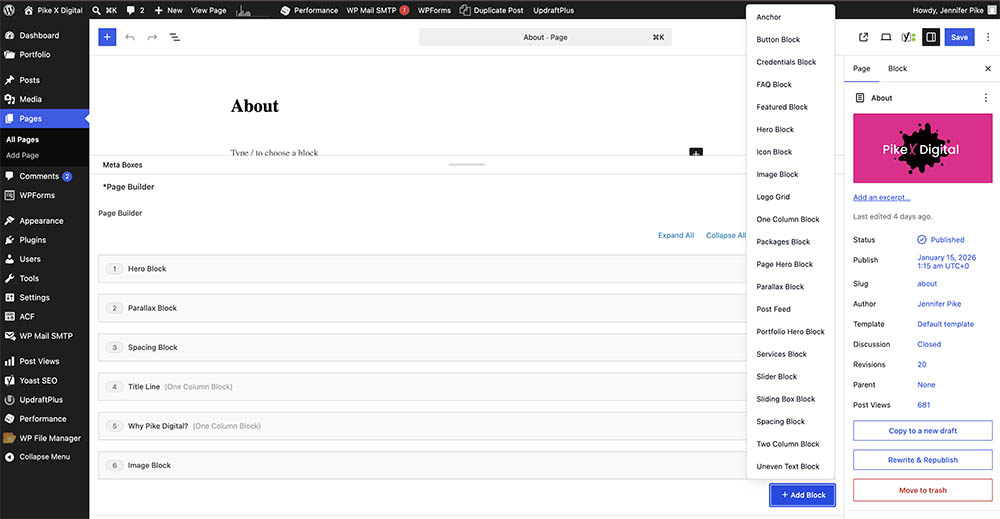
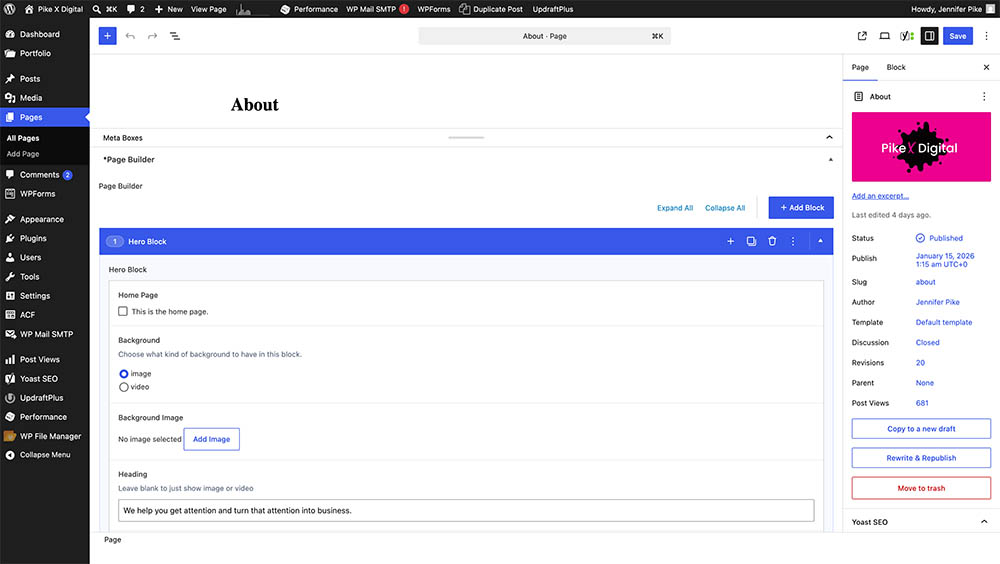
To add content to a page, open the page in the WordPress dashboard and click Add Block. From there, choose the Content Block you want to use for that section of the page.
Once the block has been added, the settings for that block will appear directly underneath it. Depending on the type of block, you may be able to choose a layout, add headings and text, upload or select images, add links or buttons, and make other choices that control how that section appears on the page. The screenshots below show an example of what that looks like inside the dashboard, with one panel for choosing the block type and another showing the fields and options inside the selected block.
You can add as many blocks as you need to build out the page, remove blocks you no longer want, and drag blocks into a different order if you want to change the flow of the page. Because the design and styling are already built into each block, you can focus on updating the content itself rather than rebuilding the layout every time you make a change.
A website should not only look good when it launches, but also be built in a way that makes updates faster, more manageable, and easier to keep consistent as your content changes over time.